
What Is an Open Shift And How to Add It?
This article is for shift supervisors, managers and business administrators.
This feature is available on desktop and tablet.
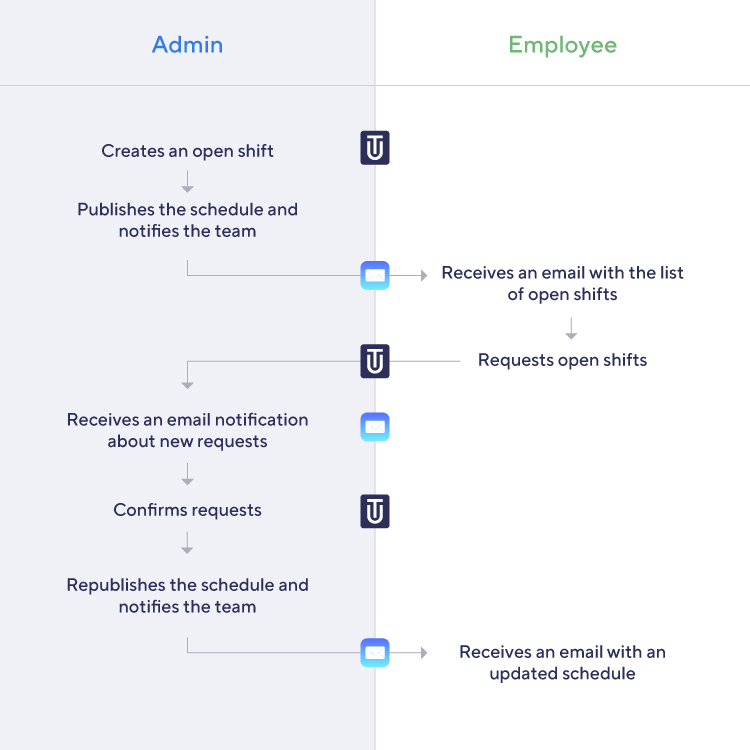
An open shift is a shift which has no employee assigned to it. As a shift administrator you might need to layout a general schedule but let your employees decide who takes a particular shift.
To add an open shift, the location has to allow it. By default, all locations are allowed to have an open shift.
To change this setting, go to a location profile (choose "Locations" in the main navigation and then the location you want to update) and switch off the setting "Allow open shifts".
Employees are allowed to request open shifts by default.
To disallow a particular employee to request open shifts, go to the employee's profile and switch off the setting "Allow shift requests".
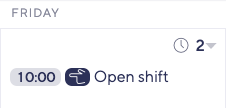
With all options switched on, go to the schedule and add a shift using the drop-down button on a date or by clicking the button "Add shift" at the top bar. In the shift editor dialogue, set up the shift's date, location, time and other properties, except for the employee. In fact, if no employee has been chosen so far, the employee select box should say "Open Shift" by default. Basically, it is the same process as with any shift, except you do not assign an employee to the shift.
Now when you are done with scheduling, publish the schedule and notify your employees of the changes (click the "Publish" button at the top bar). The system will automatically filter open shifts and send notifications to the employees who are assigned to the location and are allowed to request shifts.
After receiving the email, employees need to go to the app and click the "hand" icon next to the shift – this is called "requesting a shift". The system will then check newly added requests a few times per hour, and if there are any new requests, all shift admins for that location will receive a notification email about newly added requests.
For an employee, requesting a shift is not enough to get assigned to it. A shift administrator needs to approve the request first.
All open shifts which have been requested by an employee are marked with a hand icon. Clicking this icon will bring up a small dialogue window in which the employee select box will have the name of the employee grouped by "requested" and "other".
If your scheduling uses an extensive number of open shifts, there is also another way to look at all open shifts and employee requests. Click the "hand" icon at the top of the schedule to bring up a modal window where open shifts can be filtered by date, employee and location:

It is possible that several employees will request the same shift – it is then the responsibility of the shift administrator to assign a shift to a particular employee. After assigning open shifts, the schedule needs to be published again. To notify employees of their newly assigned shifts, proceed with the usual way of sending notification emails about the updated schedule.