
How to Add a New Shift
This article is for shift supervisors, managers and business administrators.
From the schedule calendar, there are several ways to add shifts:
- The "Add shift" button in the header bar
The button in the header bar opens the shift editor dialogue. - Drag and drop employee name or location
From the assignment bar (the one just above the calendar view) you can drag and drop employee or location (in location view and team view respectively), to dates in the schedule. - Date drop-down menus
Each editable schedule date has a drop-down menu with an "Add shift" entry. You can edit shifts going back 31 days - after that the day's schedule is locked.
Each of these 3 routes brings you to the shift editor.
The Shift Editor
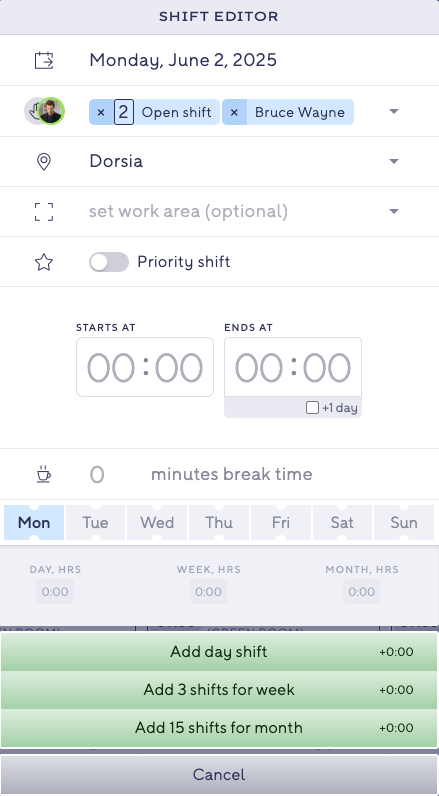
Adding a Shift
Depending on the selection in the drop-down menu in the header bar, the location or employee is set automatically but can be adjusted manually.
The date is pre-filled with today’s date (or the one selected via the date drop-down menu) and can also be changed.
A shift can be:
- assigned to one or multiple employees, or
- left as an open shift.
For open shifts, you can specify the number of available spots.
⚠️ Please note: depending on the location settings, open shifts may not be allowed. If you select an open shift and later change the location to one where open shifts are disabled, your open shift selection will be removed.
Next, set the location:
- It is either auto-selected based on the calendar view, or
- filtered to show only the locations the selected employee is assigned to.
If work areas are defined for that location, you can specify a work area for the shift.
You can also mark a shift as a priority shift. Priority shifts are highlighted in the calendar to make them stand out.
Shift Timing and Breaks
- Start and end times are required for every shift.
- If the shift continues overnight, check the “+1 day” box.
- Break time is entered in minutes.
- A default break duration can be set in the location settings and will appear here automatically.
- You can override the default for individual shifts if needed.
Repeating Shifts
The weekday is determined by the selected date. You can repeat the shift across multiple days:
- Employee working days (as defined in their Attendance Settings) will be marked with a dot above the weekday.
- Employee preferred days (as set by the employee in their profile) will have a dot below the weekday.
To create shifts:
- One shift for one day → select a single weekday only.
- Shifts for the current week → select one or more weekdays and click “Add shifts for week.”
- Shifts for the month → select one or more weekdays and click “Add shifts for month.”
In both batch options, the selected date acts as the starting point for shift creation.