Adding the App to Your Home Screen and Bookmarks
TeamUltim is a web app, meaning that there is no app to download, install and update. For most of our users TeamUltim becomes a daily tool to organize their day, so it makes sense to add the app shortcut directly to their mobile phones or browsers.
If you are mostly using a desktop browser, we recommend adding a bookmark to the page you visit the most – probably Dashboard or just the login screen, which will redirect you to Dashboard, if you are logged in already. Most of the browsers allow to quickly add a bookmark by clicking the star icon at the end of the URL bar:

On mobile devices it is possible to add a bookmark to the URL as well, but it is also possible to add the bookmark directly on the home screen, so it looks like any other regular app. Clicking this icon will open the browser and load TeamUltim app.
On iPhone/Safari
- Go to the Safari app on your iPhone.
- Go to the website https://app.teamultim.com
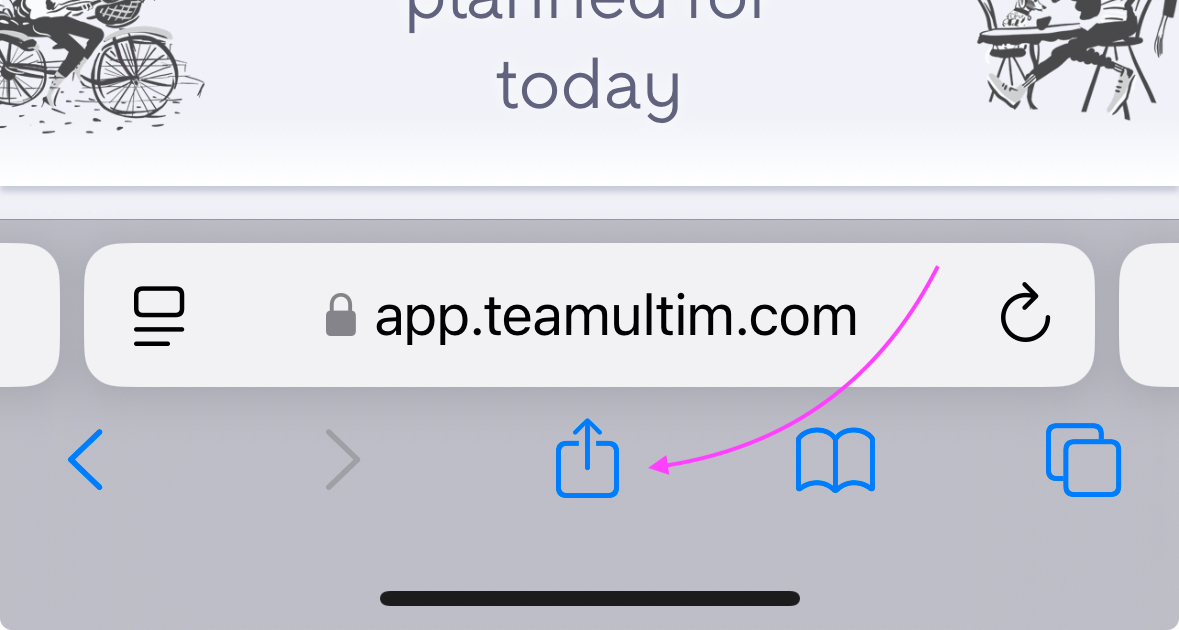
- Tap "share" icon in the menu bar:
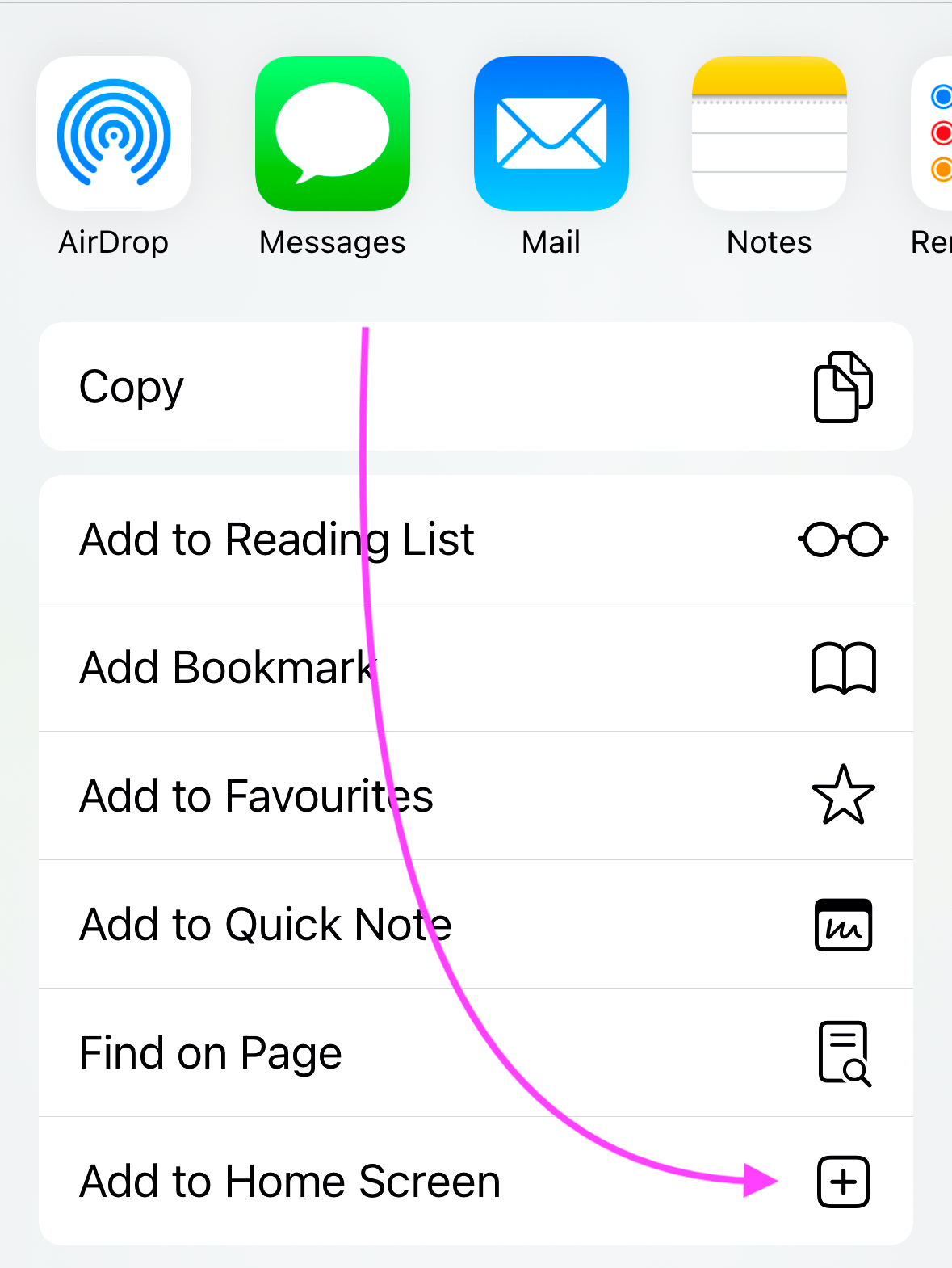
- Scroll down the list of options, then tap Add to Home Screen.
- The icon will appear on the last page of your home screen (if you have multiple pages).
On Android/Chrome
- Open Google Chrome app
- Go to the website https://app.teamultim.com
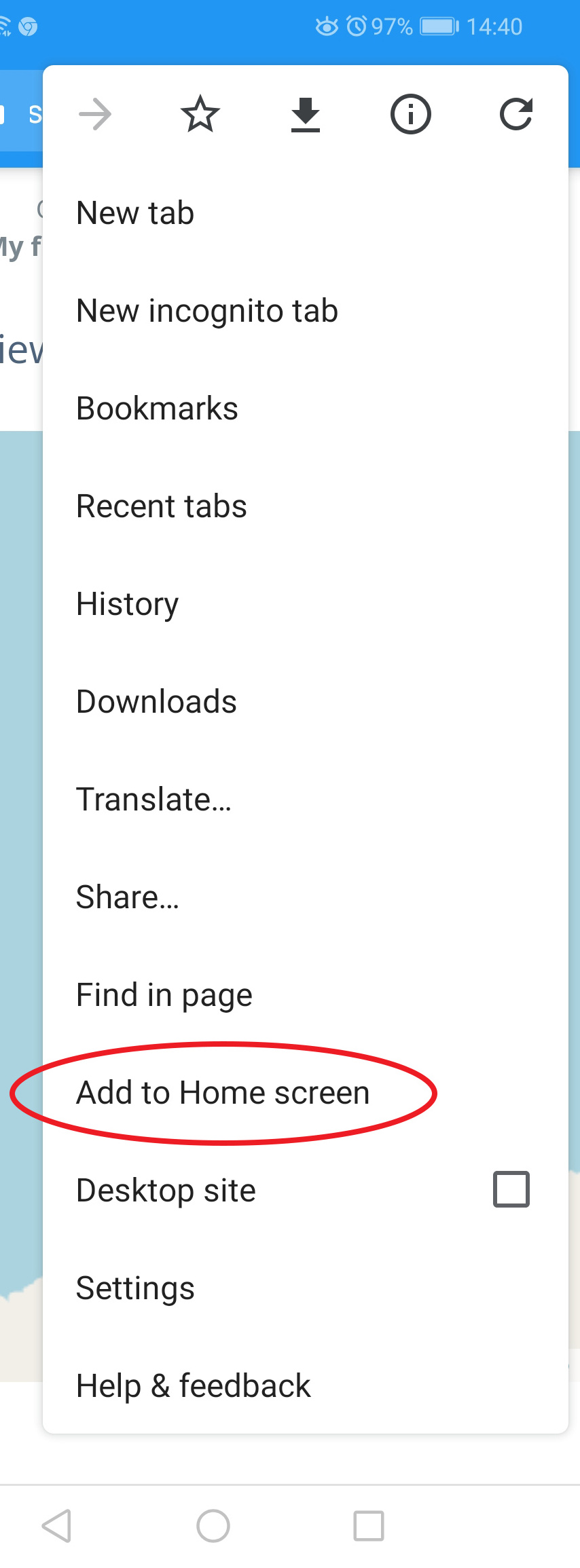
- In the right corner of the URL bar click three dots to open menu bar.
- Tap "Add to Home screen":